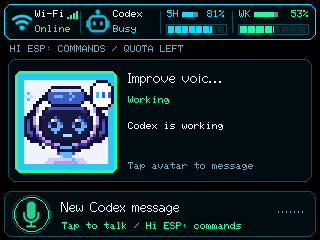
What you can do
- See remaining five-hour and weekly usage with reset countdowns.
- See animated agent activity and select an agent for a message.
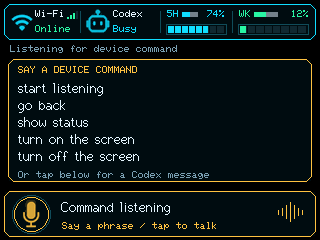
- Say “Hi ESP” for the five local commands shown in the listening guide.
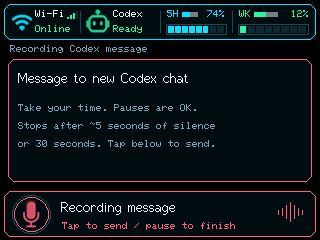
- Record a message by touch or voice, then send it through your bridge to a configured transcription service.
- Adjust alert volume, idle screen timeout and USB Micro layout through Web Bluetooth.
- Configure Wi-Fi with the board's on-screen setup code.
Approvals stay in the Codex client. Visibility of threads running in a separate Codex process depends on what the bridge's app-server connection can observe.
Use Codex Micro over USB HID
The monitor includes an unofficial Codex Micro compatibility mode. Connect the board with a USB data cable to the computer running Codex Desktop and let Desktop discover it. USB power alone does not activate Micro: the firmware waits for a discovery/status exchange. The screen then shows Desktop slots and controls. Wi-Fi can remain connected, but USB Micro does not require a private bridge host/key.
If Desktop runs on Windows, leave USB owned by Windows. An active USB/IP attachment to WSL gives WSL the whole device and prevents Windows Desktop from using its HID controls. On macOS, allow Input Monitoring if Desktop requests it.
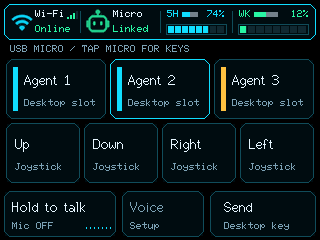
Choose the controls on the board
- Keep the board powered and open Device setup → Monitor settings in Chrome or Edge.
- Click Connect to monitor and select FNK0104B-MONITOR. USB HID can remain connected; no OS Bluetooth pairing is needed.
- Choose 3 slots + directions (the default) or 6 agent slots, then click Save board settings. The layout applies without reboot and is saved on the board. Older firmware needs an update if the selector is disabled.
Monitor 0.7.1 adds Agent appearance → Robot avatars in the same settings form. Agent numbers stay the default. Robots replace both lines of tile text, while keeping the header, host color strips and touch shortcuts. Each slot receives a random robot at startup that stays stable until reboot; the robot does not identify a thread. Command labels stay visible.
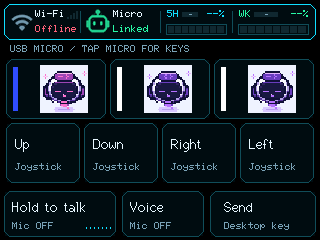
The tiles are stable Desktop positions: Agent 1–3 send AG00–AG02; the six-slot layout also exposes AG03–AG05. They do not count running agents. Monitor 0.7.2 animates portraits from Desktop lighting: blue is interpreted as thinking, orange as needing input, red as error, and white/green/unknown as neutral idle. These are host-color interpretations, not thread names or running-agent counts. Actual October 11 LCD readbacks checked status transitions; physical BLE saving and touch acceptance remain open.
Tap the board's Micro header indicator to switch between agent controls and six command buttons. Tap it again to return. Hold to talk, optional Voice and Send remain below. Screen labels stay fixed after a Desktop remap, so remember your assignments.
| Board command | Desktop key |
|---|---|
| Fast | ACT06 |
| Approve | ACT07 |
| Reject | ACT08 |
| Fork | ACT09 |
| Hold to talk / Mic | ACT10 |
| Voice (optional) | ACT11 |
| Send | ACT12 |
Direction buttons send joystick movement and a neutral release, rather than keyboard arrow key presses. Configure them as analog-stick directions in Desktop. Direction interpretation and remapping still require a physical check in your Desktop version.
Map buttons to custom actions in Codex Desktop
- After discovery, open Settings → Codex Micro.
- For agent buttons, choose Custom assignments and assign a chat, shortcut or enabled skill to the matching slot.
- For command buttons, select the corresponding key in the Layout preview and choose its action. For example, assign Fork to an enabled skill.
- For arrows, edit the analog stick direction assignments. For example, assign Right to an enabled skill.
- Try each assignment on the board. Use Reset layout to restore command and stick defaults.
These host settings are described in the official Codex Micro guide, which currently calls the host ChatGPT desktop. It documents the retail device; this board's compatibility is unofficial.
Hold to talk by default; Voice when you want it
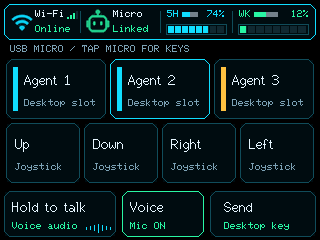
Monitor 0.6.3 starts with outgoing USB audio off. Select Microphone (TinyUSB UAC1) in Desktop and keep its first microphone key on Push to talk. Hold the board's Hold to talk button to speak, release to silence board audio, then review and press Send. Desktop's double-tap dictation does not bypass this board's hold/release gate.
To add continuous conversation, enable Use separate microphone keys in Desktop and assign the second switch to Voice Chat, if available. Then choose Hold to talk + Voice toggle in browser setup and save. Tap Voice to open board audio and request a voice chat; tap again to close board audio and toggle the desktop microphone. Hold to request ending the chat; a one-second hold also closes board audio. Turn Voice off before using Hold to talk.
The browser configures board preferences only; it cannot change or verify Desktop mappings. Mic ON means the board is sending live audio to a host stream; Mic OFF means silence; Waiting means no host stream is open. These indicators do not confirm Desktop recording or session state. Sampling continues locally. Saving settings, rebooting or reconnecting returns board audio to off.
When your allowance is exhausted
The usage reset countdown replaces the agents and shortcuts when the Wi-Fi bridge reports that the five-hour or weekly allowance is fully used. If both are exhausted, both timers appear. Unknown reset times are labeled; at zero, the monitor waits for updated usage before restoring the normal view.
Usage and reset times require the Wi-Fi bridge, including while USB Micro is connected. USB/BLE alone only supplies slot status. Voice and Send remain available: credits may allow continued work, and Voice Chat availability at the limit has not been verified. Local screen/status commands still run on the board. Introduced in 0.8.4 and included in 0.8.5 and newer. The timer is automatic once the bridge is connected. Physical limit transitions still await device validation; see behavior and limits.
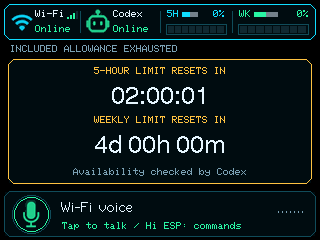
To use it, install current firmware, run the local bridge and save its address and matching token in encrypted Device setup. No separate timer setting is required. If Firmware updates reports Update catalog unavailable on 0.8.5 or earlier, see the catalog-address recovery steps.
Rear status LED
Monitor 0.8.2 adds a rear indicator: green for working, yellow when work ends, and red for attention or errors. In Monitor settings, turn it off or choose a timeout from 5 to 600 seconds. It defaults enabled for one minute per status change; repeated updates do not extend it. Preferences are saved on the board.
Monitor 0.8.3 lets each status use solid, blink, breathe or a smooth rainbow cycle, with brightness and speed controls and a browser preview. Rainbow replaces the status color. Every pattern respects your existing timeout.
Yellow follows an idle transition over USB or the end of active work reported by the Wi-Fi bridge; it does not verify a successful result. A USB host that signals completion only by blanking its lights cannot trigger yellow.
Optional photos while idle
Monitor 0.8.0 can keep normal controls, blank the area below the usage bar, or display SD photos. The bar stays live. In Monitor settings, choose an idle delay and photo interval shorter than the existing screen-off timeout. Changing photos does not restart the screen-off countdown.
Choose JPEG, PNG or WebP in the photo panel. The browser crops, resizes and converts the image before SD upload; up to eight prepared photos are stored separately from the standalone photo frame.
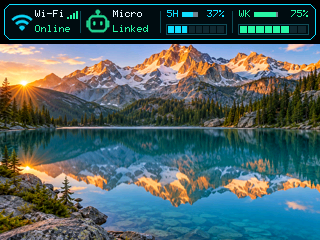
Photo mode defaults off. Prepared-file SD transfers, rendering and released PSRAM were verified through serial in USB Micro mode. Physical BLE uploads/settings, real touch and automatic idle timing, and active Wi-Fi speech coexistence remain unverified. See setup and evidence and the development journey.
Settings that stay with your board
Monitor 0.8.5 saves the bridge address, port and token on the board, alongside Wi-Fi and existing preferences. Hold the Wi-Fi indicator for three seconds, enter the displayed code in Device setup and connect securely. Use Monitor bridge to save your computer’s address and matching token. The board restarts with its existing Wi-Fi.
Compatible OTA updates retain volume, screen timeout, layout, voice controls, avatars, LED settings and idle-photo options. An upgrade from older firmware needs the bridge entered once if its details existed only inside the old firmware. A blank token field keeps the saved key; removing the bridge clears only its configuration. Physical OTA retention awaits validation. See migration details.
Wireless firmware updates
Install monitor 0.7.1 or newer over USB once. A 0.7.0 board also needs this USB install to establish the reproducible speech-model baseline. After that, connect to Monitor settings in Device setup and use Check for update, then Install update. The board downloads compatible firmware over saved Wi-Fi, keeps its microphone off during update work and restarts. Reconnect to check the installed version. Speech-model or partition changes still need a full USB install. Monitor OTA hardware validation is pending.
The connection, explained
Board → Wi-Fi → local Python bridge → signed-in Codex app-server
Recorded message → bridge → configured transcription service → selected Codex thread.
Board → USB HID + USB microphone → Desktop Micro controls and host voice.
Browser → Bluetooth LE → board preferences or Wi-Fi provisioning.
GitHub Pages serves this guide and firmware files. Your computer runs the bridge. The browser is not the status server, and USB is not needed for normal Wi-Fi status after setup.
Get your own monitor working
- Prepare the network. Use 2.4 GHz Wi-Fi that can reach your computer. A monitor with no credentials opens secure provisioning; use Device setup with its displayed code.
- Configure the private bridge. Use encrypted Device setup to save your computer’s LAN address, port and shared token on the board. Configure the same token on the computer’s bridge.
- Run the bridge. Use the signed-in Codex app-server in the same environment. WSL may require LAN forwarding; a Windows Codex socket does not automatically exist inside WSL.
- Install the monitor. Use the browser USB installer once, or the named
codex-monitorPlatformIO environment with its speech models. Compatible newer firmware can then use OTA. - Configure preferences. Connect to
FNK0104B-MONITORin the browser picker for volume, idle timeout and the three- or six-slot USB Micro layout. - Add transcription if wanted. Configure a compatible service behind the bridge. Local screen/status commands already work without it.
Open the full setup walkthrough ↗
Listening is two interactions
“Hi ESP” opens a twelve-second window for “start listening”, “go back”, “show status”, “turn on the screen” and “turn off the screen”. “Show status” holds the quota view; “go back” or a card tap restores agent overview.
A message capture allows ten seconds to start speaking, approximately five seconds of silence before submission and a thirty-second maximum. Tap to stop early. Recognition pauses during capture/submission; quiet mode and attention tones are coordinated with listening.
Other screen states
What has been verified?
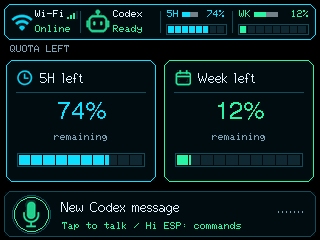
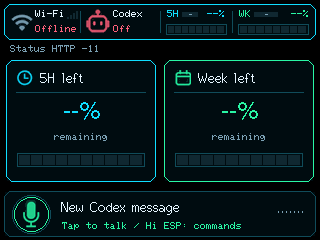
The current monitor was uploaded with verified image hashes. Serial confirmed saved Wi-Fi reconnection, speech models ready, continuous audio-front-end processing and live Codex SSE. The LCD screenshot above was captured from the board. Previous mock runs exercised error/recovery and usage endpoints.
Spoken recognition accuracy, meter sensitivity, sustained memory stability, actual long capture and running-agent message interactions remain UNKNOWN until exercised. Read the dated evidence before treating a build or a host preview as a physical test.