Firmware · direct from this repository
Put your display
back to work.
Flash firmware over USB or configure your powered board over Bluetooth. Choose the task below to get started.
S3
One step to install
Connect your board
What this firmware does
- 01Connect the board with a USB data cable.
- 02Choose the Espressif USB serial device.
- 03Keep the tab open until writing finishes.
Loading the firmware release…
Leave “Erase device” unchecked to keep saved Wi-Fi and monitor settings when updating compatible firmware. Checking it deletes all saved settings. The speech monitor replaces OTA/FATFS storage with speech models. Keep USB connected during installation.
Board screenshot
Codex monitor
See live Codex usage and agent activity. Say “Hi ESP” for local commands, or tap Voice command to send a message through your local bridge.
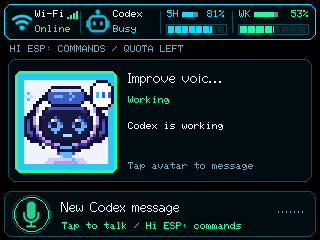
Screen preview
Voice recorder
Say “Hi ESP” to record, pause to save an Opus file to your SD card, and select a recording to play it through an attached speaker.
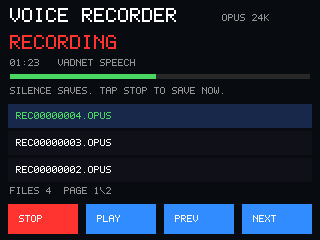
Configure your powered board
Connect through your browser
Use desktop Chrome on macOS, or Chrome / Microsoft Edge on Windows, with Bluetooth enabled. Open this HTTPS page directly in that browser. Safari and Firefox cannot use this page's Web Bluetooth controls.
Click the connect button below and choose the board in the browser's device picker. Monitor firmware advertises automatically; there is no pairing button and you do not need to pair it in Windows or macOS Bluetooth settings.
Can't find the board?
On Windows 11
- Turn on Bluetooth in Windows Settings and keep the board nearby and powered.
- Open this page in Windows Chrome or Edge. A site served from WSL can use Windows Bluetooth through that browser.
- Click Connect to monitor and look for FNK0104B-MONITOR in the browser picker. Older firmware may advertise Codex Micro.
On macOS
- Use desktop Chrome and turn on Bluetooth.
- In System Settings → Privacy & Security → Bluetooth, allow Google Chrome if it is listed. Accept a Bluetooth permission prompt, then restart Chrome if you changed its permission.
- Search using this page's connect button. Use the browser picker rather than the macOS Bluetooth settings list.
Switching computers? Close the connected settings tab on the other computer first. The monitor stops advertising while connected and resumes when it disconnects. If it still does not appear, restart the board, close the picker and open it again.
Wrong page or a redirect? Open the direct setup link. If your browser still redirects to another domain, clear site data for cmwen.github.io and cmwen.dev and retry.
Make the board yours
Monitor settings
Choose the controls you want to see, then map their actions in Desktop. Board preferences are saved over Bluetooth; microphone key assignments belong to the desktop app.
Choose FNK0104B-MONITOR in the browser picker. Keep USB connected if you use Desktop controls; OS Bluetooth pairing is unnecessary. These nearby Bluetooth preferences are unauthenticated. Wi-Fi passwords use the protected setup below.
For the monitor or Wi-Fi over BLE firmware
Set up Wi-Fi
The monitor opens setup when no Wi-Fi is saved. To change networks, hold its Wi-Fi indicator for three seconds. Read the 12-character code on the board, then connect below. The standalone Wi-Fi over BLE firmware also works.
Check that this is the trusted HTTPS setup page. The device name alone does not prove identity. Enter the code from your own board and wait for “Connected securely” before entering a password. The code authenticates an encrypted provisioning session; this page does not save your password. The monitor returns automatically after setup.
For the Codex monitor
Run the local server
The board polls a Python bridge on your computer over Wi-Fi. This website handles Bluetooth settings; the bridge supplies live Codex status and usage. Keep the board and server on a network where they can reach each other.
Bridge launch instructions
- Save Wi-Fi on the board. Use the Wi-Fi setup section above if needed. The monitor reuses those saved credentials.
- Set the bridge address and key. Use the encrypted Monitor bridge form above to save your computer’s LAN address, port (usually
8765) and a generated private token on the board. Configure the same token on the computer usingMONITOR_TOKENor the ignored localmonitor_secrets.h. - Start the bridge from the repository root in the environment with your running, signed-in Codex app-server:
Keep that terminal running. Allow TCP 8765 on your trusted LAN. Optional voice commands require a separately running speech service; the full guide includes its launch settings.MONITOR_HOST=0.0.0.0 MONITOR_LOG_REQUESTS=1 python3 monitor-server/run.py - Install the monitor once from the repository root:
Look forpio run -e codex-monitor pio run -e codex-monitor -t upload pio device monitor -b 115200monitor_status integration=connectedand numeric quotas. The bridge should log board requests to/v1/statusreturning HTTP 200.
On monitor 0.8.5+, save bridge details through encrypted connection setup above. They stay on the board across compatible public OTA updates. Firmware older than 0.8.5 needs an update before that form is available.
Running the server in WSL?
Windows browser Bluetooth access and the board's Wi-Fi access to WSL are separate. In WSL 2 NAT mode, localhost working on Windows does not make the bridge reachable from the board. Configure Windows TCP forwarding to WSL and allow the port through the private-network firewall. Use the Windows LAN address in the board header, not localhost or WSL's NAT address.
Full server-to-board setup guide · Bridge configuration and API